Enhance Your Driving Experience
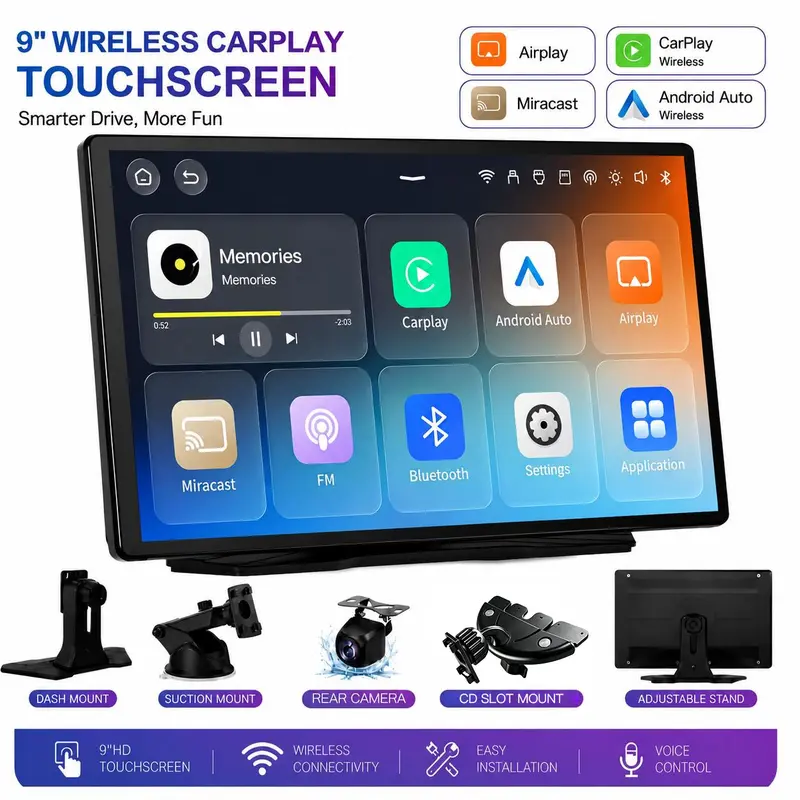
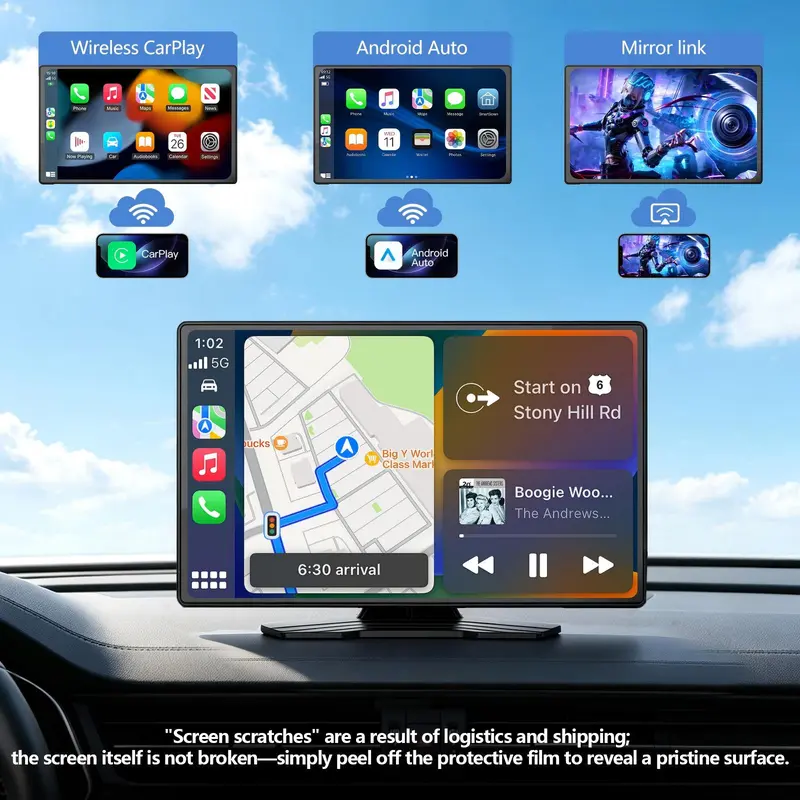
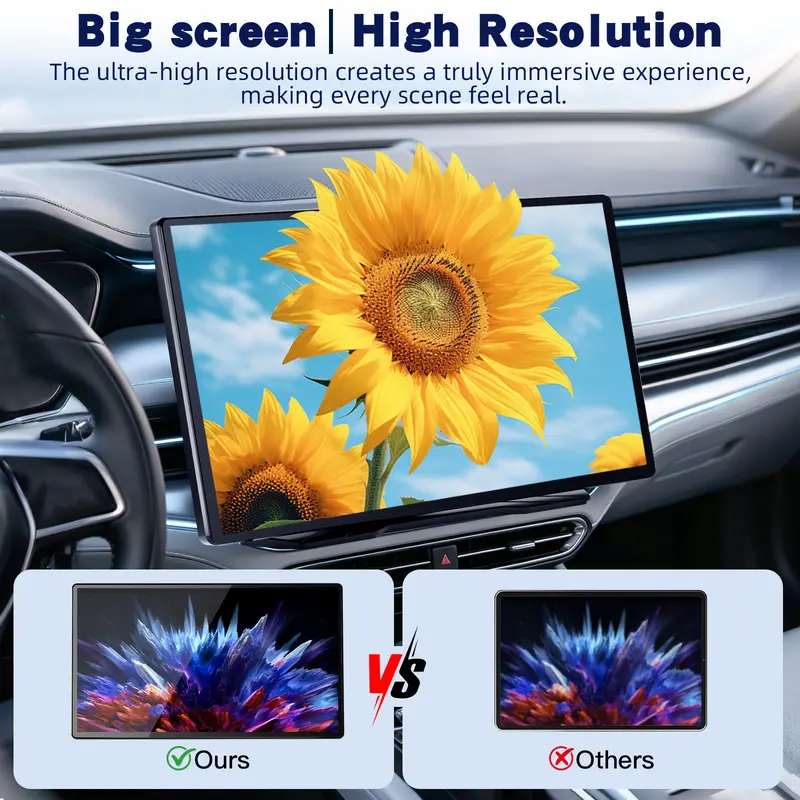
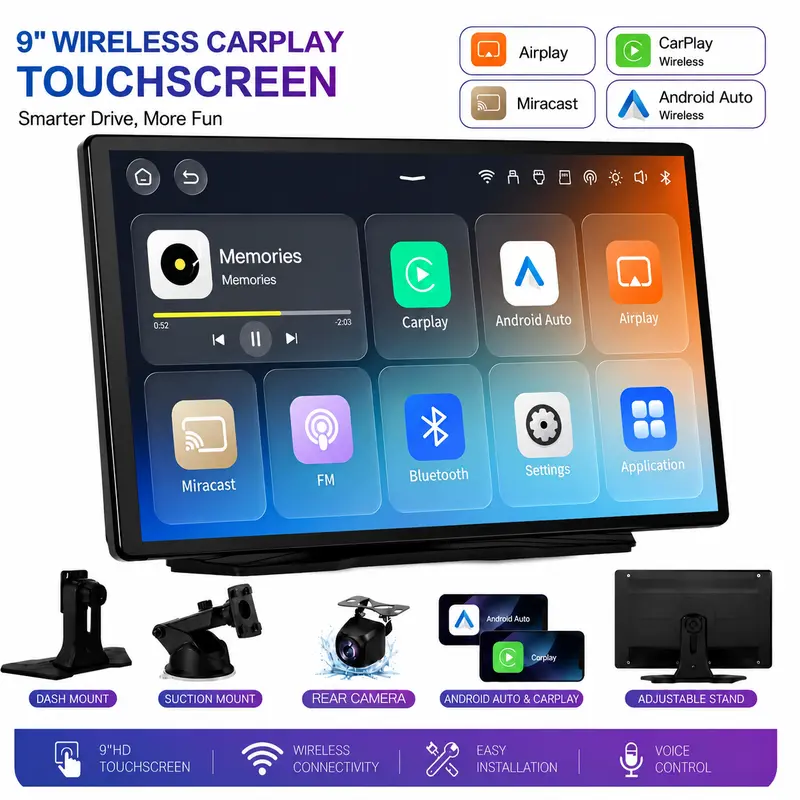
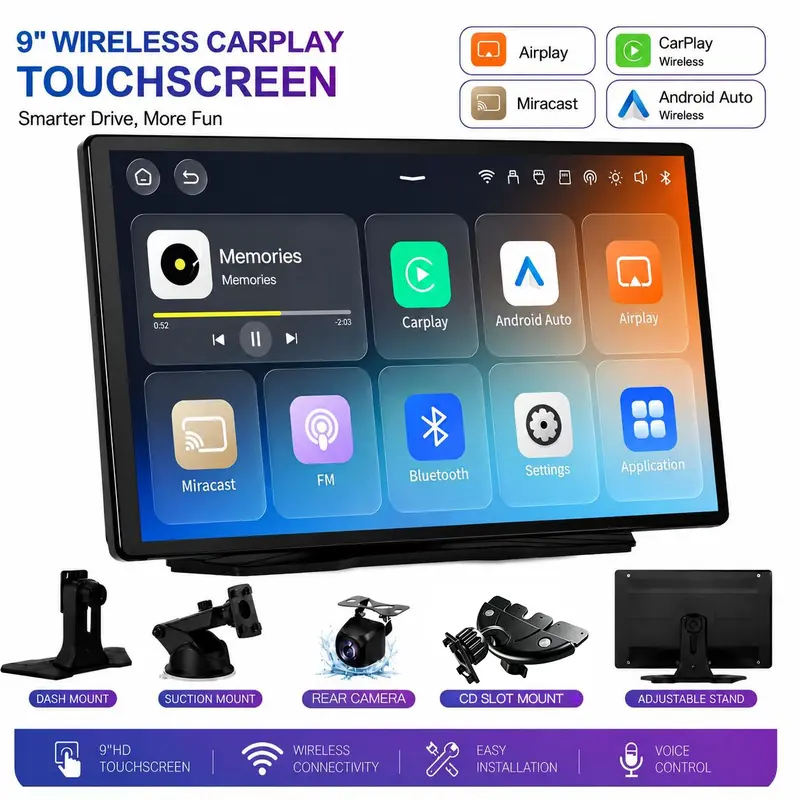
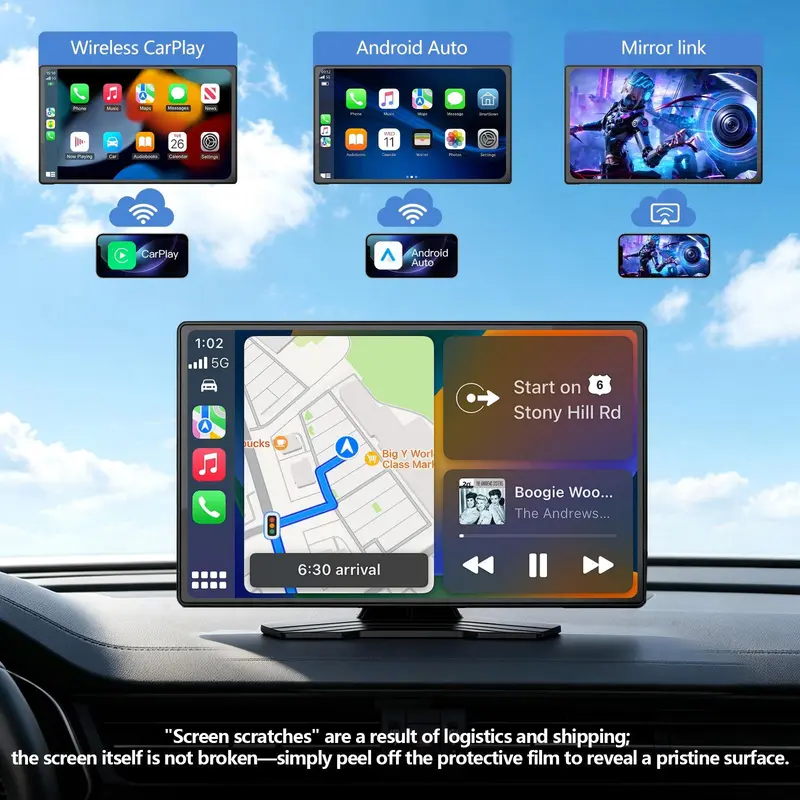
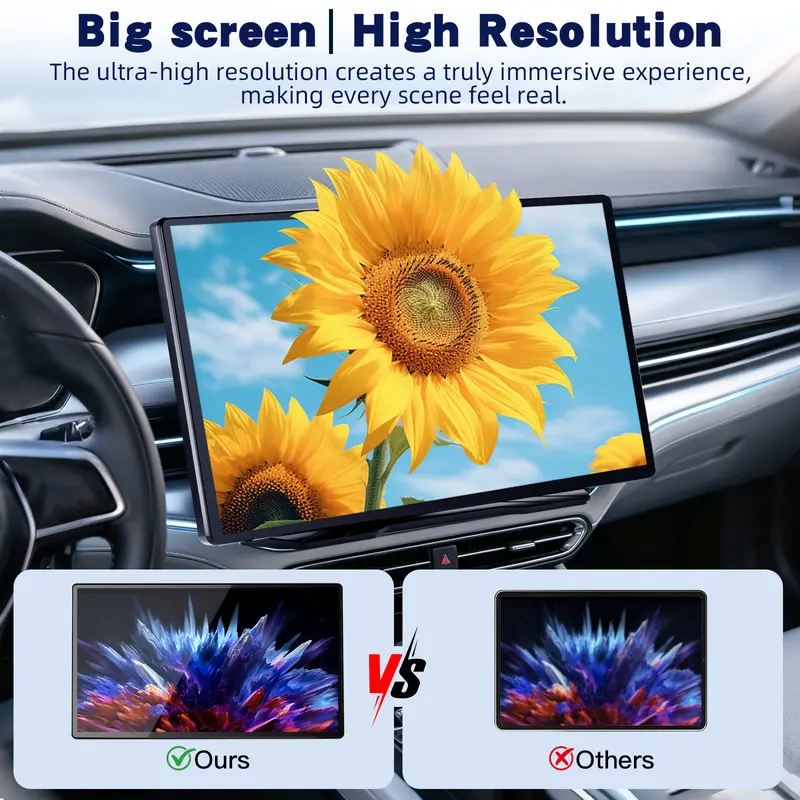
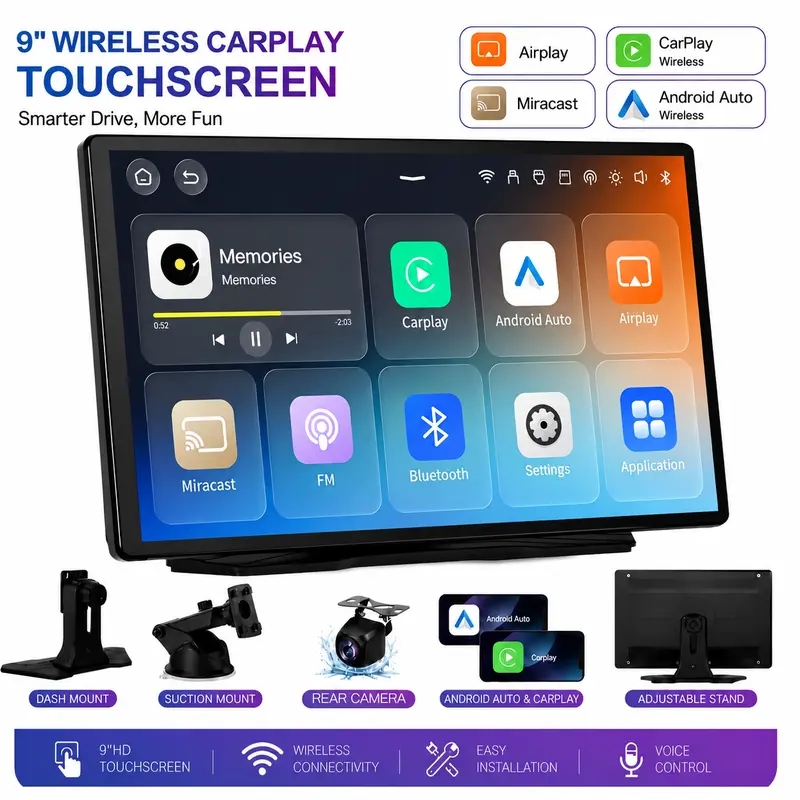
Upgrade your vehicle for a smarter driving experience. Equipped with a 9-inch 1280×720 HD touchscreen, effortlessly access navigation, music, and calling features on the large screen.
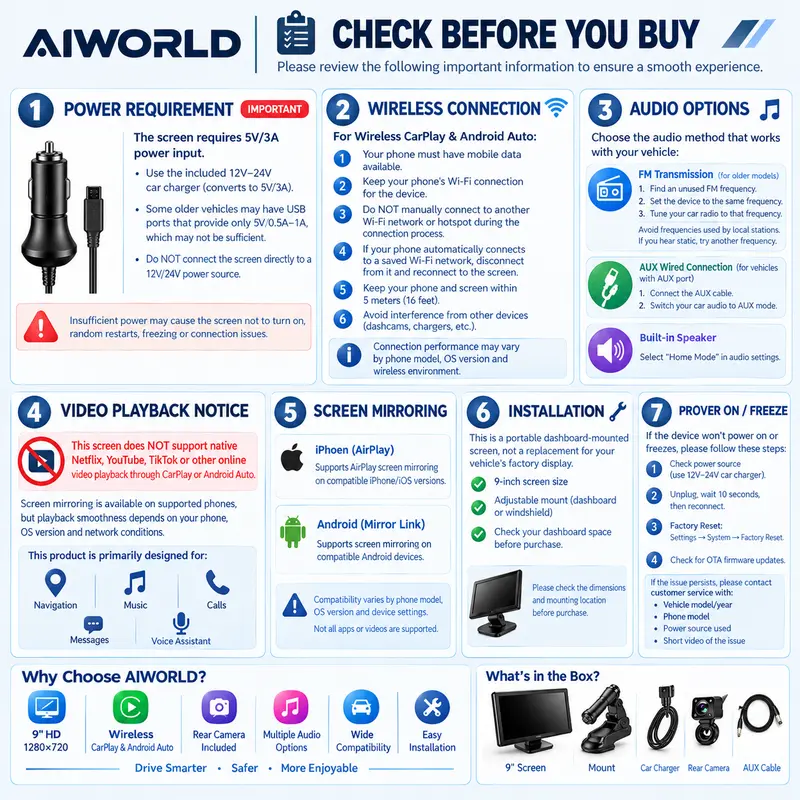
⚠️ Power Supply Requirements – Please Read Before Purchase
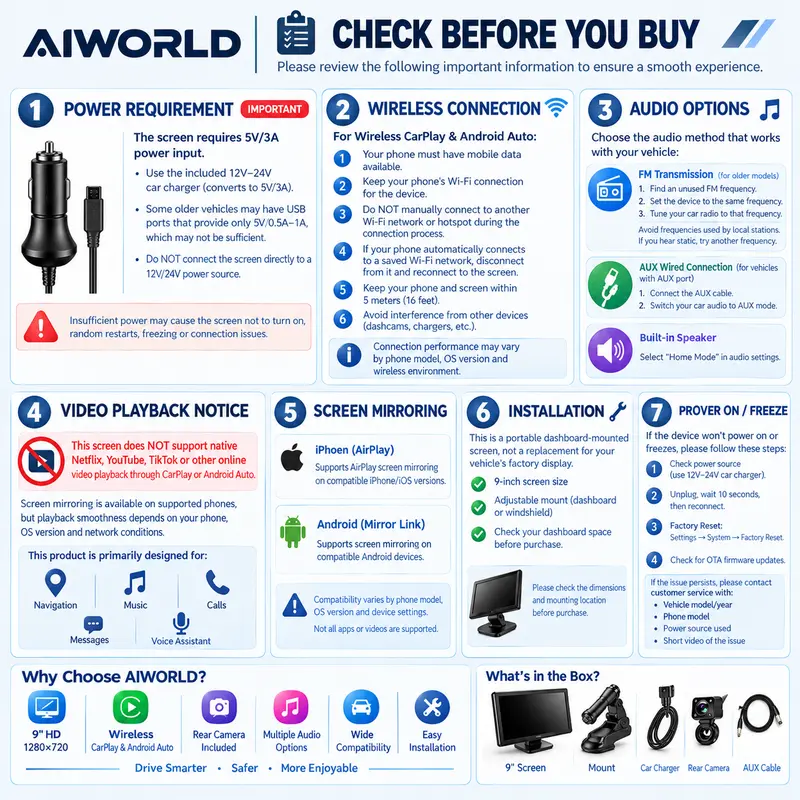
The screen itself requires 5V/3A power input.
The included car charger converts your vehicle's 12V–24V power supply to 5V/3A.
Recommended setup:
Vehicle 12V/24V socket Included car charger Screen
Some older vehicles may have USB ports that provide only 5V/0.5A–1A, which may not provide enough power.
Insufficient power may cause:
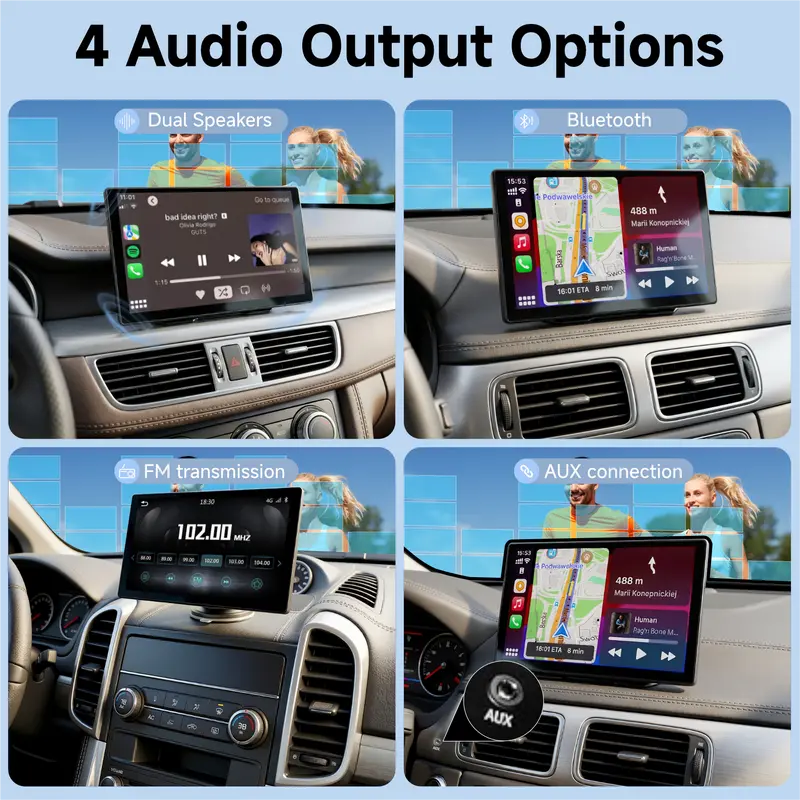
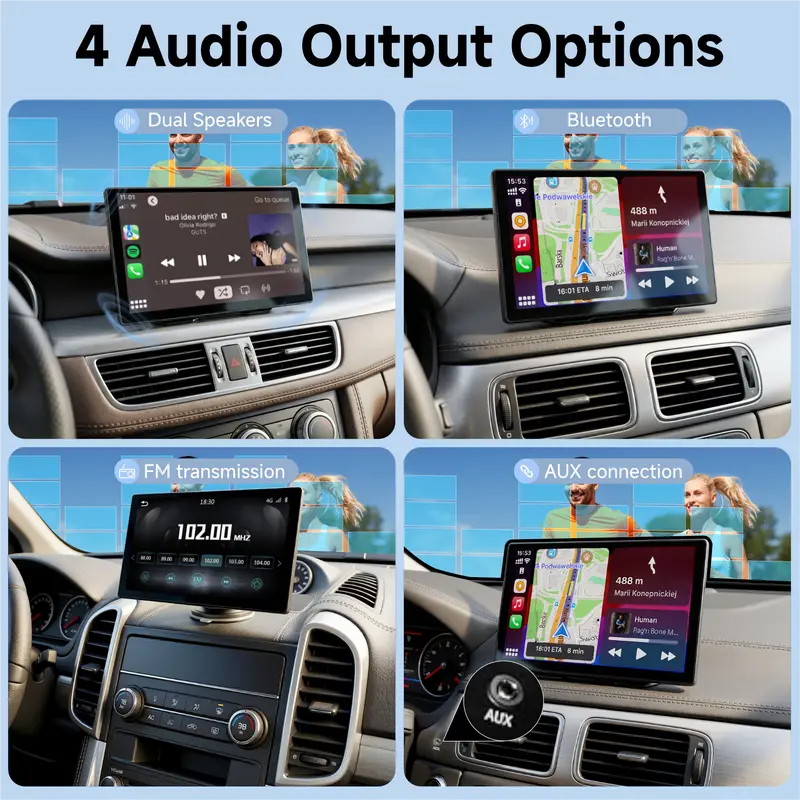
This product supports multiple audio output options; you can choose the appropriate one based on your vehicle's configuration or personal preference:
FM Transmission (for older models lacking AUX port or Bluetooth)① First, find an available FM frequency: Scan the local FM radio band to find a frequency with no broadcast signal (e.g., 87.9 or 107.9 where no local station is broadcasting).② Set the device's FM frequency to that available frequency.③ Tune your car radio to the same frequency.④ Audio will then play through your car's audio system.
⚠️ FM Transmission Important Notes:
You MUST avoid FM frequencies already occupied by local radio stations – otherwise signal interference will occur, resulting in static noise or poor reception.
If you experience static noise on a frequency, that frequency is likely occupied by a local station – switch to another available frequency and re-pair.
FM frequency availability varies by city. If you encounter static noise while driving in a different city, scan for a new available frequency.
If FM interference is severe and no clean frequency is available, we recommend switching to AUX wired connection.
️️AUX Wired Connection (for vehicles equipped with an AUX auxiliary input port)① Connect the device to your vehicle's AUX port using an AUX audio cable.② Switch your car audio system to AUX input mode.③ Audio will play through your car's speakers.
Built-in SpeakerWhen you prefer not to connect to your car's audio system, activate the device's built-in speaker by selecting "Home Mode" in audio settings – sound plays directly from the device, no additional setup required.
Bluetooth OutputSelect CarPlay/Auto mode – audio will be output from your smartphone.
⚠️ No Sound Check: If no sound is output after connecting, please check whether your car's audio system has been switched to the correct audio source (FM/AUX). Leaving it on radio or another mode will result in no sound.
Plug and Play
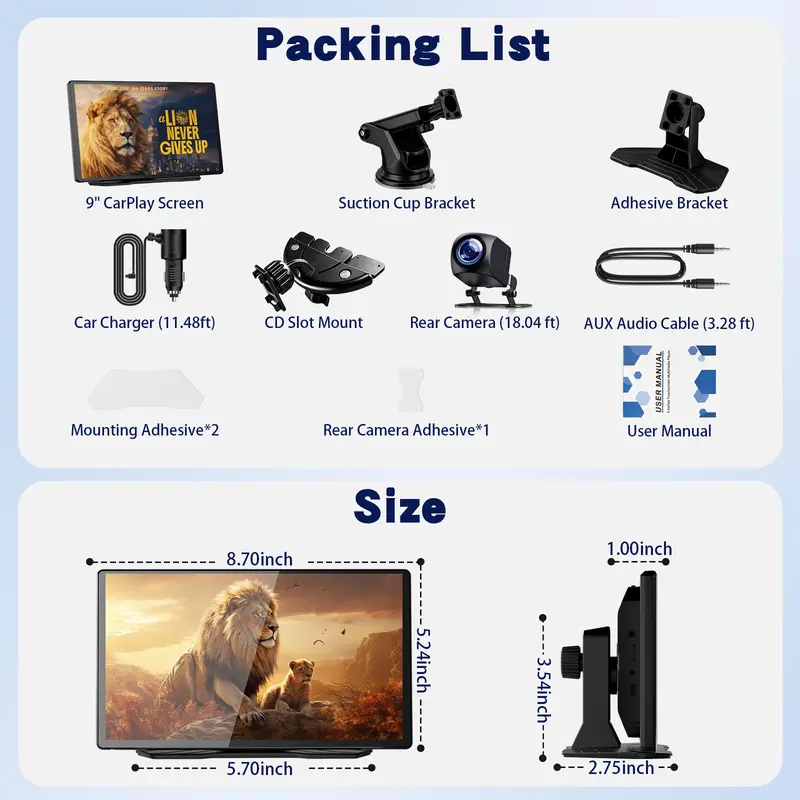
No professional installation required – simply plug in the power, connect the device, and use the included suction cup holder to secure the screen in place.
⚠️ Important: Connection Requirements
After connecting, mobile data will be required.
During normal use, do not connect the screen to any other Wi-Fi network or hotspot. If your phone has previously been connected to nearby Wi-Fi networks or hotspots, please disconnect from them or ignore these networks.
For optimal connection stability, keep your device away from dashcams, car chargers, or any other devices that may generate electromagnetic interference.
For optimal wireless performance, keep your smartphone and device within 5 meters of each other.CarPlay and Android Auto Connection Guide
Apple iPhone CarPlay Connection Steps:
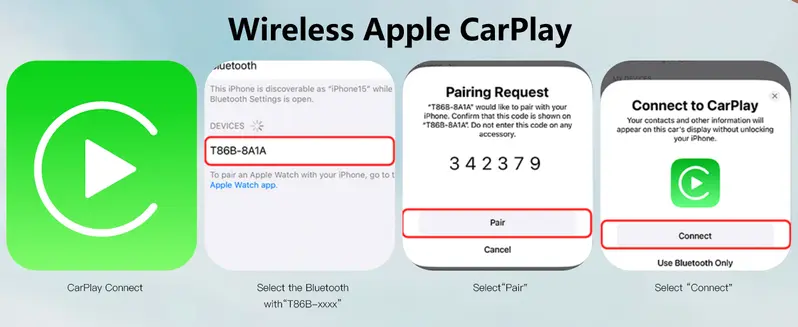
(⚠️ Note: Your phone's Wi-Fi must NOT connect to any other Wi-Fi signal – only use mobile cellular data)
6.To switch to another phone or use mirroring, perform a factory reset first (step 1)
Android Phone Android Auto Connection Steps:
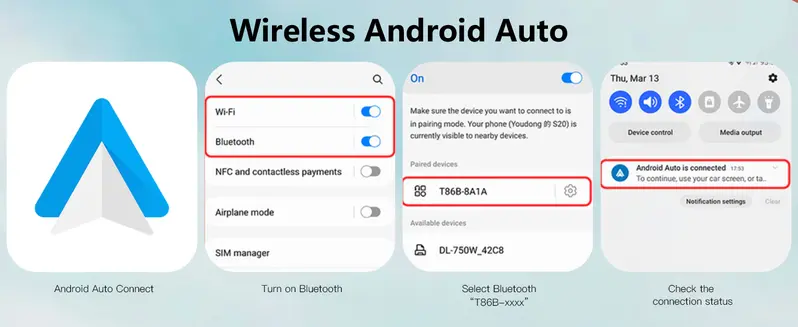
(⚠️ Note: Your phone's Wi-Fi must NOT connect to any other Wi-Fi signal – only use mobile cellular data)
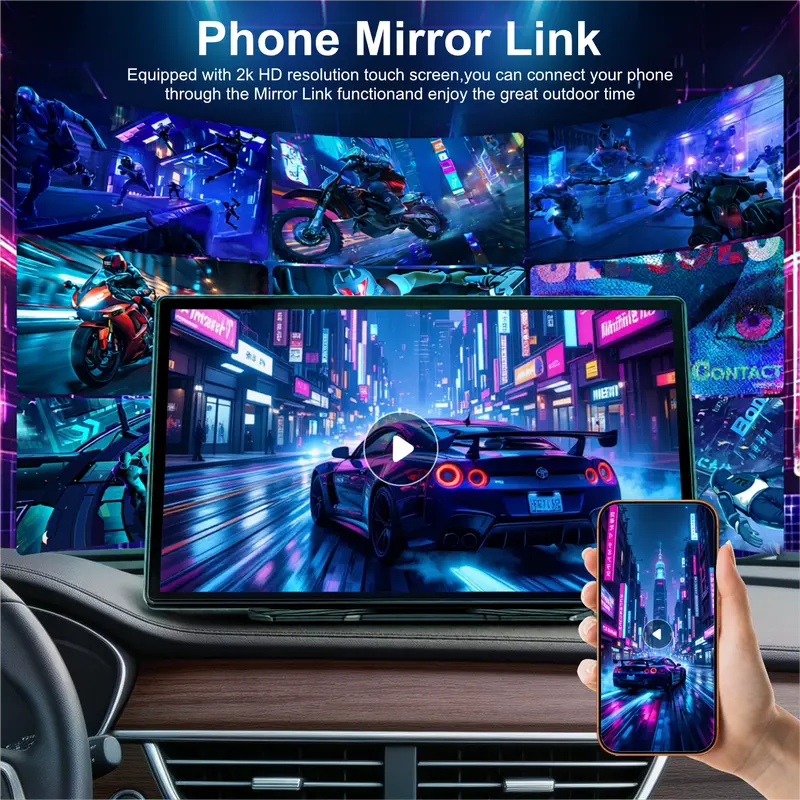
6.To switch to another phone or use mirroring, perform a factory reset first (step 1)iOS (iPhone) AirPlay Mirroring:
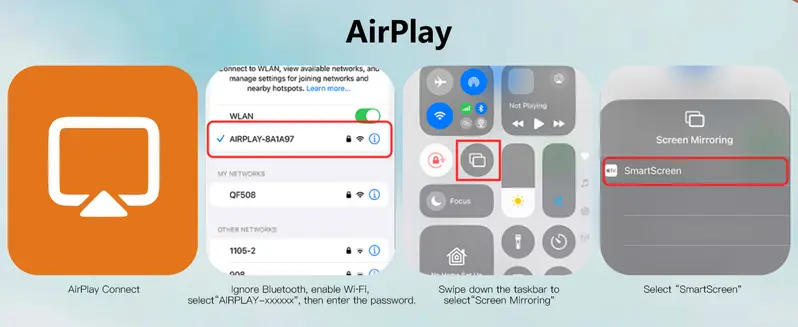
【⚠️ Note: Mirroring compatibility may vary depending on your phone's operating system version. For best results, update your phone to the latest version.
Android Mirror Link
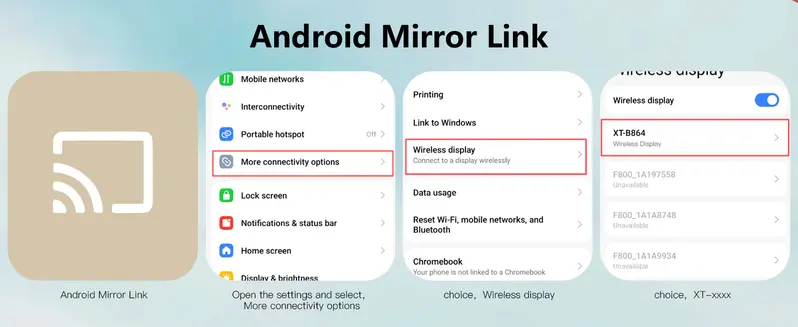
Device Power-On / Freeze Troubleshooting
Step 1 — Check the Power Source
Use the included 12V–24V car charger.
The screen requires 5V/3A input.
If your vehicle USB port provides less than 3A, use the included car charger instead.
Step 2 — Reconnect Power
Disconnect the power cable.
Wait approximately 10 seconds, then reconnect the cable.
Step 3 — Factory Reset
Go to:Settings System Factory Reset
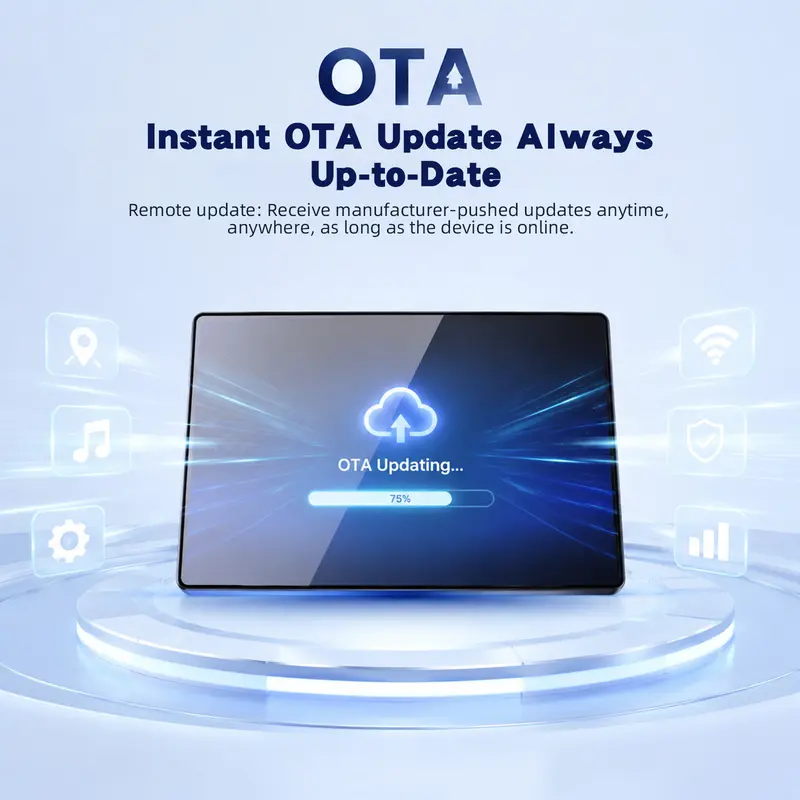
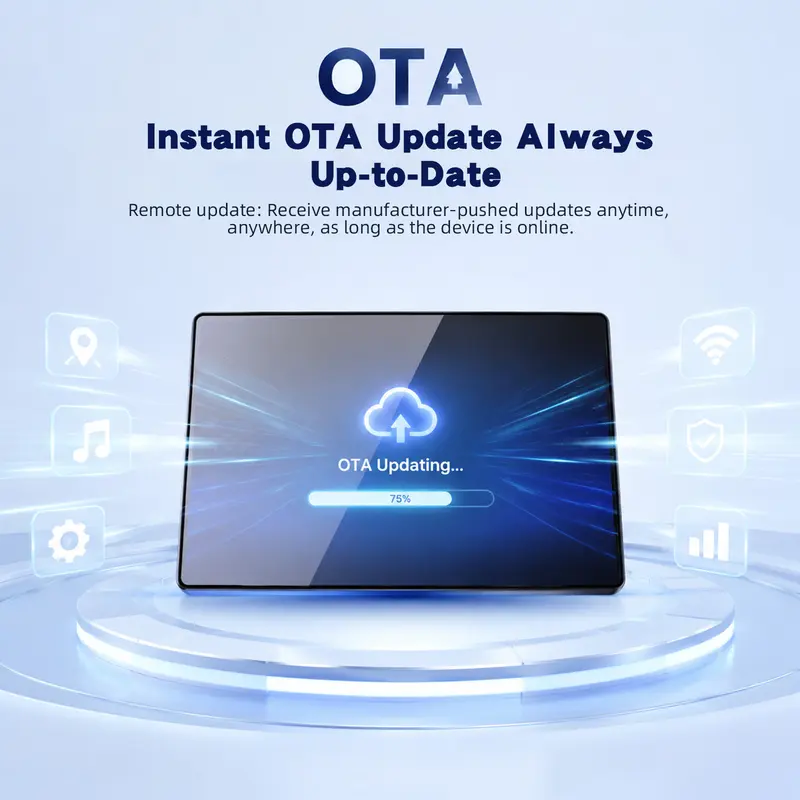
Step 4— Check for Firmware Updates
Check the device settings for available OTA firmware updates.
If the issue continues, please contact customer service and provide:
·Short video showing the issue
VIDEO PLAYBACK NOTICE:
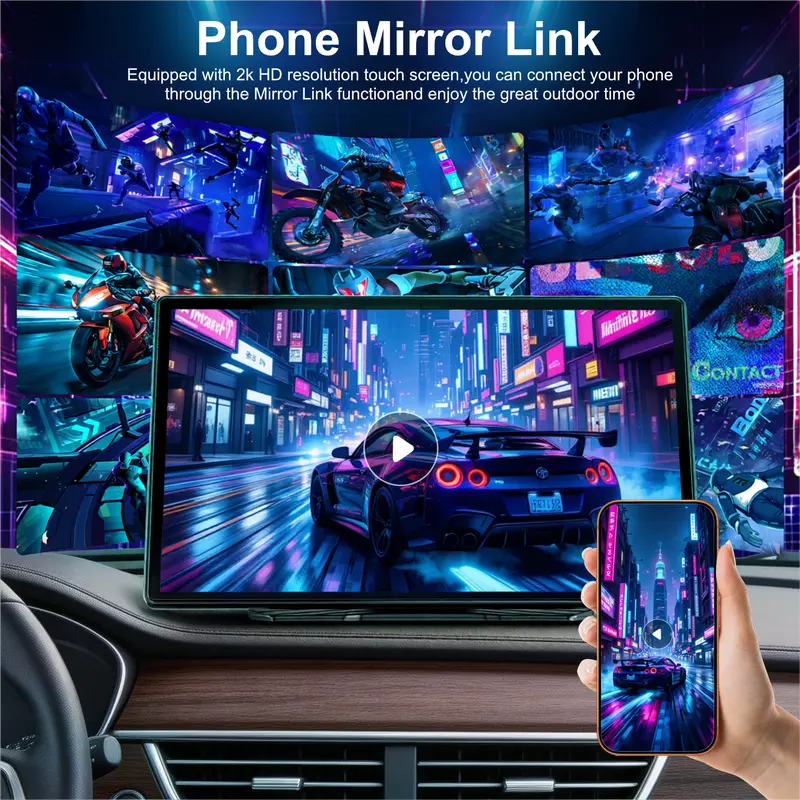
This product does NOT support online vVIDEO PLAYBACK NOTICEideo playback (e.g., YouTube, Netflix, etc.). The screen mirroring feature allows you to project your smartphone screen onto this device; however, video playback smoothness depends on your smartphone's performance and network conditions.
CarPlay/Android Auto connectivity is affected by factors such as your phone's operating system version, vehicle audio configuration, and external electromagnetic environment – occasional connectivity fluctuations are therefore normal.
FREQUENTLY ASKED QUESTIONS
Q1: Does my vehicle need factory CarPlay?
No. This is an independent portable screen and does not require your vehicle's factory CarPlay system.
However, power supply, audio connection, installation space and smartphone compatibility may vary by vehicle.
Q2: Can I use the screen with an older vehicle?
Yes, the screen can be used in many older vehicles.
However, older vehicle USB ports may provide insufficient power. If your USB port provides less than 5V/3A, use the included car charger.
Q3: Can I use Netflix, YouTube or TikTok through CarPlay?
No. Native online video playback is not supported through CarPlay or Android Auto.
Compatible screen mirroring may be available depending on your phone and operating system.
Q4: Why is there static noise when using FM?
FM transmission depends on local radio frequency conditions.
Make sure the screen and car radio are set to the same unused FM frequency.
If you hear static, try another unused frequency.
Q5: Why is there no sound?
First check that your vehicle audio system is set to the correct input:
If you are using the built-in speaker, select Home Mode in the screen's audio settings.
Q6: Why does the screen disconnect or fail to pair?
Check the following:
Your phone has mobile data available.
·Your phone is not manually connected to another Wi-Fi network/hotspot.
·The phone and screen are within approximately 5 meters.
·The correct connection procedure is being followed.
·Nearby wireless devices are not causing interference.
If necessary, restart the screen and try pairing again.